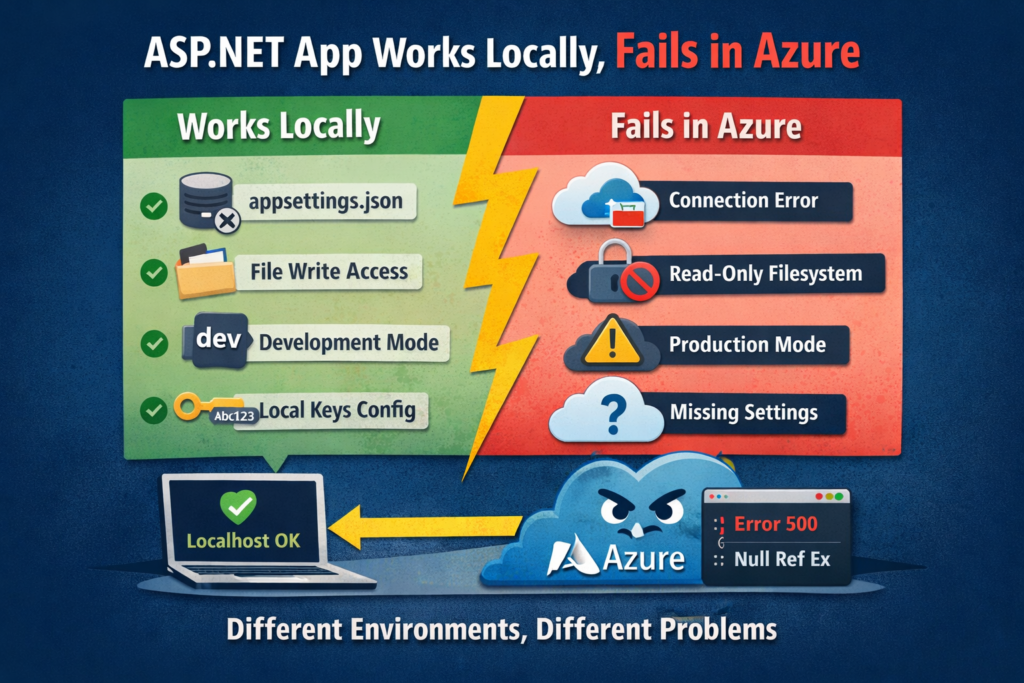
I believe many developers are facing this ASP.NET App Works Locally but Fails in Azure issue. An ASP.NET app works perfectly on your local machine but fails after deployment to Azure App Service. This is a widespread production issue. In most cases, the problem is not the code itself, but differences between the local development environment and Azure’s hosting environment. Understanding these differences helps to fix deployment failures quickly and permanently.
Your ASP.NET app:
- ✅ Works on localhost
- ❌ Fails on Azure
🔴 Reason 1: Connection Strings
Your app reads from appsettings.json:
{
  "ConnectionStrings": {
    "DefaultConnection": "Server=.;Database=MyDb;Trusted_Connection=True;"
  }
}
Why It Fails in Azure
Azure App Service does not automatically use local connection strings.
If you deploy without setting it in Azure:
❌ Database connection fails
❌ App may crash at startup
✅ Correct Fix
Azure Portal → App Service → Configuration → Connection strings
Add:
Name: DefaultConnection
Value: Server=azure-sql.database.windows.net;...
Azure overrides appsettings.json at runtime.
🔴 Reason 2: File System Write Access Is Restricted
What Works Locally
File.WriteAllText("logs/error.txt", "Error occurred");
Your local machine allows writing anywhere.
Why It Fails in Azure
Azure App Service:
- Has read-only folders
- Deletes files on restart
- Blocks unauthorized paths
❌ Causes runtime exceptions
❌ Logs silently fail
✅ Correct Fix
Use one of these instead:
- Application Insights
- Azure Blob Storage
wwwroot(temporary only)
Example:
logger.LogError("Error occurred");🔴 Reason 3: Case Sensitivity (Windows vs Linux)
What Works Locally (Windows)
<img src="/Images/logo.png">Folder:
/images/logo.pngWindows ignores case → works fine.
Why It Fails in Azure
If App Service runs on Linux:
- File paths are case-sensitive
/Images≠/images
❌ 404 errors
❌ Missing CSS/images
✅ Correct Fix
Always match exact casing:
<img src="/images/logo.png">🔴 Reason 4: Environment Is Production in Azure
What Works Locally
You run in:
ASPNETCORE_ENVIRONMENT = DevelopmentSo:
- Detailed errors shown
- Dev-only code runs
Why It Fails in Azure
Azure runs as:
ASPNETCORE_ENVIRONMENT = ProductionThis may:
- Disable Swagger
- Hide errors
- Use different services
Example:
if (env.IsDevelopment())
{
    app.UseSwagger();
}
✅ Correct Fix
- Test locally in Production mode
- Log errors properly
- Don’t rely on dev-only behavior
🔴 Reason 5: Missing Azure Configuration Values
What Works Locally
var apiKey = Configuration["PaymentApiKey"];Stored in:
"PaymentApiKey": "local-test-key"Why It Fails in Azure
Azure has no idea about this value unless you add it.
❌ Null reference errors
❌ API authentication fails
✅ Correct Fix
Azure Portal → Configuration → Application settings
Add:
PaymentApiKey = real-production-key🔴 Reason 6: Logging Is Not Enabled
What Works Locally
You see:
- Console logs
- Debug output
Why It Fails in Azure
By default:
- No logs
- No error output
- Silent failures
✅ Correct Fix
Enable:
- Application Insights
- Log Stream
- Stdout logs
This turns Azure from a “black box” into a debuggable system.
🔴 Reason 7: Hardcoded Local Dependencies
What Works Locally
var path = "C:\\Reports\\data.csv";Why It Fails in Azure
Azure:
- Has no
C:drive - Uses Linux containers
❌ File not found
❌ App crashes
✅ Correct Fix
Use:
var path = Path.Combine(
    Environment.GetEnvironmentVariable("HOME"),
    "site", "wwwroot", "data.csv");
Or external storage.
🔍 Summary
| Issue | Works Locally | Fails in Azure |
|---|---|---|
| Connection strings | Local config | Needs Azure config |
| File writing | Allowed | Restricted |
| Case sensitivity | Ignored | Strict |
| Environment | Development | Production |
| Config values | appsettings.json | App Service settings |
| Logging | Automatic | Must enable |
One thought on “ASP.NET App Works Locally but Fails in Azure: Reasons”
i enjoy reading your articles, it is simply amazing, you are doing great work, do you post often? i will be checking you out again for your next post. you can check out webdesignagenturnürnberg.de the best webdesign agency in nuremberg Germany
Comments are closed.