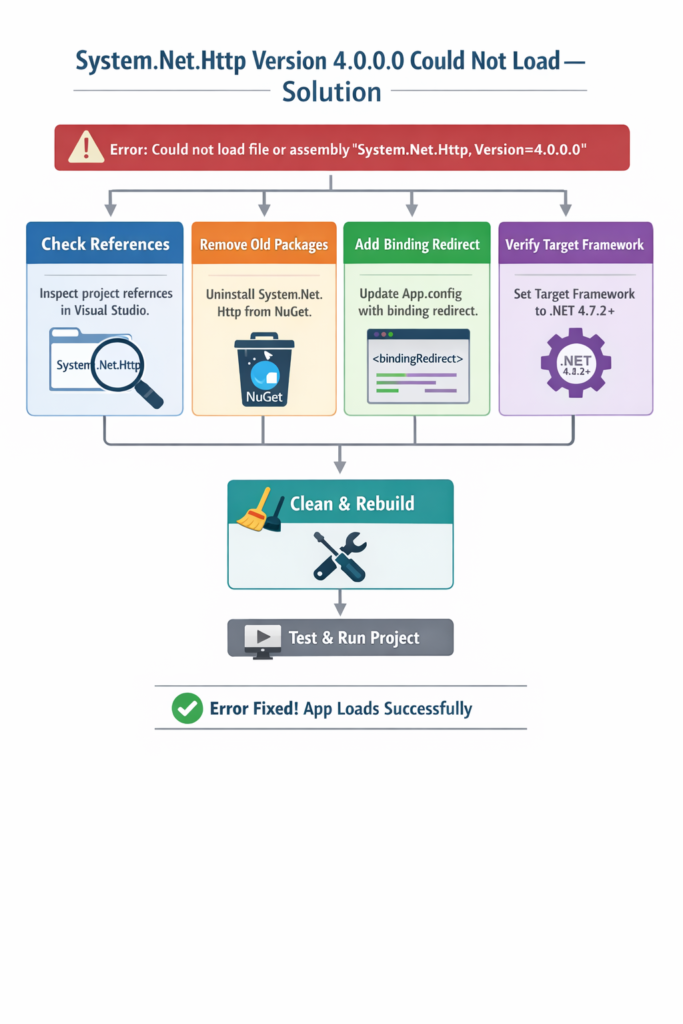
Are you ever getting the error “System.Net.Http Version 4.0.0.0 Could Not Load” in your .NET application? This common issue mostly appears after upgrading your project, installing NuGet packages, or deploying to a new server. The good news is that it’s not a tough problem; a version mismatch, missing assembly, or incorrect binding redirect reason for this error. In this article, you’ll learn what the steps are to fix the error quickly and stop it from happening again.
System.IO.FileNotFoundException: ‘Could not load file or assembly ‘System.Net.Http, Version=4.0.0.0, Culture=neutral, PublicKeyToken=b03f5f7f11d50a3a’ or one of its dependencies.’
Why This “System.Net.Http Version 4.0.0.0 Could Not Load” Happens
This error occurs when your application tries to load System.Net.Http version 4.0.0.0, but either:
- The assembly is missing from your project or output folder.
- There’s a version mismatch between your project’s references and the runtime environment.
- Your project targets .NET Framework 4.7+ while referencing an older version of
System.Net.Httpfrom NuGet.
In short, your app is looking for a version of the library that it can’t find.
Step 1: Check Your Project References
- Open your project in Visual Studio.
- Go to Solution Explorer → References.
- Look for
System.Net.Http. - Right-click → Properties, and check the Version.
Make sure it matches the version your application expects. For .NET Framework 4.7.2 or higher, you typically do not need a NuGet package, because the assembly is part of the framework.
Step 2: Remove Conflicting NuGet Packages
Sometimes the issue occurs because an older NuGet package overrides the framework version. To fix:
- Open Package Manager Console or NuGet Package Manager.
- Check for
System.Net.Httppackages:
Get-Package | Where-Object {$_.Id -eq "System.Net.Http"}- Uninstall any older versions:
Uninstall-Package System.Net.Http
- Clean and rebuild your project.
Step 3: Add a Binding Redirect
If your project references multiple assemblies that depend on different versions of System.Net.Http, a binding redirect ensures all of them use a single version.
- Open
App.config(orWeb.configfor web apps). - Add or update the
<dependentAssembly>section under<runtime>:
<configuration>
  <runtime>
    <assemblyBinding xmlns="urn:schemas-microsoft-com:asm.v1">
      <dependentAssembly>
        <assemblyIdentity name="System.Net.Http" publicKeyToken="b03f5f7f11d50a3a" culture="neutral" />
        <bindingRedirect oldVersion="0.0.0.0-4.2.0.0" newVersion="4.2.0.0" />
      </dependentAssembly>
    </assemblyBinding>
  </runtime>
</configuration>
Adjust
newVersionaccording to the version installed in your project.
Step 4: Clean, Rebuild, and Restart
After making changes:
- Clean Solution →
Build → Clean Solution - Rebuild Solution →
Build → Rebuild Solution - Close Visual Studio → Reopen → Run the project
This ensures that Visual Studio picks up the correct assembly references.
Step 5: Verify Target Framework
Make sure your project targets a compatible framework version:
- Right-click your project → Properties → Application → Target framework
- Choose .NET Framework 4.7.2 or higher
- Rebuild the project
Targeting newer frameworks reduces conflicts with
System.Net.Httpand avoids unnecessary NuGet references.