SQL Server gives us a powerful feature called Database Mail, which allows developers and database administrators to send emails directly from the database engine. This functionality is commonly used for sending automated reports, alerts, logs, and monitoring notifications.
However, many developers encounter the following error when sending emails with attachments or query results:
File attachment or query results size exceeds allowable value of 1000000 bytes.This concern is mainly common when sending large datasets, report files, or log exports through Database Mail using the sp_send_dbmail stored procedure.
In this article, we will discuss:
- What causes this SQL Server error
- How Database Mail size limits work
- Troubleshooting techniques
- Step-by-step solutions to fix the problem
- Best practices for sending large reports via SQL Server
By the end of this article, you will have a clear understanding of how to resolve this issue and configure SQL Server Database Mail effectively.
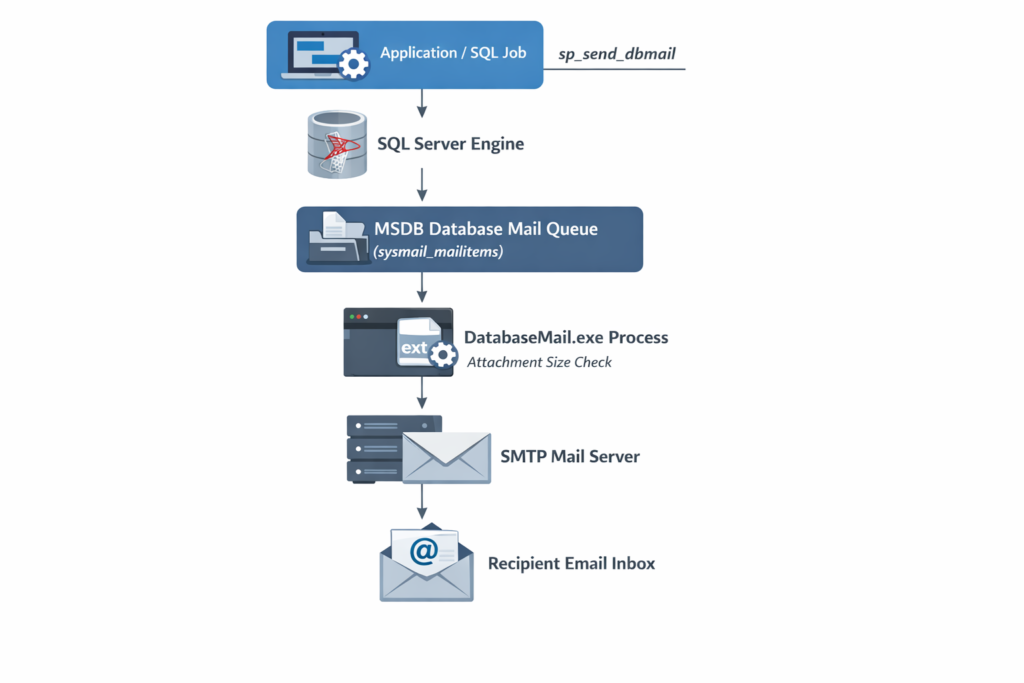
What is SQL Server Database Mail?
Database Mail is a built-in feature in Microsoft SQL Server that enables the database engine to send emails using SMTP servers.
It is commonly used for:
- SQL Server Agent job notifications
- Automated report delivery
- Error alerts
- System monitoring
- Log file delivery
- Data exports
The most commonly used stored procedure for sending emails is:
sp_send_dbmailExample:
EXEC msdb.dbo.sp_send_dbmail
@profile_name = 'SQLMailProfile',
@recipients = 'admin@company.com',
@subject = 'Daily Sales Report',
@body = 'Please find the attached sales report.',
@query = 'SELECT * FROM SalesReport',
@attach_query_result_as_file = 1;
In this example, SQL Server sends query results as an email attachment.
However, if the generated file exceeds SQL Server’s configured limit, the email will fail with the error discussed in this article.
Understanding the Error
The error message:
File attachment or query results size exceeds allowable value of 1000000 bytes.means that the attachment or query result file is larger than the maximum file size allowed by SQL Server Database Mail configuration.
By default, SQL Server sets the maximum attachment size to:
1000000 bytesThis is approximately:
976 KB (~1 MB)This limit applies to:
- File attachments
- Query result attachments
- Generated CSV result files
- Exported datasets
If the file size exceeds this value, SQL Server blocks the email from being sent.
Why SQL Server Uses Attachment Size Limits
The attachment size limit exists for several reasons:
1. Prevent Server Overload
Large attachments use memory and CPU resources when SQL Server processes emails.
2. Protect Email Infrastructure
SMTP servers often restrict attachment sizes.
3. Prevent Database Misuse
Database Mail is intended for notifications and lightweight reports, not massive data exports.
4. Improve Performance
Large result sets can slow down SQL Server jobs and background processes.
How to Troubleshoot the Error
Before increasing SQL Server limits, you should investigate the root cause.
Here are several troubleshooting approaches.
1. Review the Query Being Sent
If your email contains query results, analyze the query carefully.
Example of a problematic query:
SELECT * FROM SalesTransactionsThis retrieves all columns and rows, producing a large dataset. Instead, retrieve only the required data.
Example:
SELECT TransactionID, ProductName, TotalAmount
FROM SalesTransactions
WHERE TransactionDate >= GETDATE() - 7
Using the WHERE clause, we can reduce the result set. Before doing this, you want to discuss with the customer what he actually wants.
2. Reduce the Number of Rows
Sometimes you only need recent or summarized data.
Example:
SELECT TOP 100 *
FROM ErrorLogs
ORDER BY LogDate DESC
In here, we get only the latest data. This prevents the result file from becoming too large.
3. Remove Unnecessary Columns
Wide tables with many columns increase file size.
Example:
Bad approach:
SELECT * FROM CustomersBetter approach:
SELECT CustomerID, CustomerName, Email
FROM Customers
In here, we only get the needed columns. Reducing columns lowers the attachment size.
4. Compress Large Attachments
If attachments are generated outside SQL Server (for example, from C# applications), compress them before sending.
Examples include:
- ZIP files
- Compressed CSV files
- Optimized PDFs
Compression can reduce file size dramatically.
5. Store Files Instead of Emailing Them
For very large reports, a better modern approach is to store files in a shared location.
Examples include:
- Cloud storage (Azure Blob, AWS S3)
- File servers
- Document management systems
The email can then contain a download link instead of the file.
Solution: Query results size exceeds
Re-Config SQL Database Mail Setting
Step 1: Right-click Database Mail and select “Configure Database Mail” and
Click “Next”

Step 2: Select the highlighted option and click “Next”

Step 3: Change the highlighted value and click “Next”
The default value is “1000000”; change it to what your requirement is.

Example: Sending Query Results as an Attachment
Here is a typical example using sp_send_dbmail.
EXEC msdb.dbo.sp_send_dbmail
@profile_name = 'DBMailProfile',
@recipients = 'reports@company.com',
@subject = 'Weekly Sales Report',
@body = 'Please find the weekly sales report attached.',
@query = '
SELECT OrderID, CustomerName, TotalAmount
FROM Sales
WHERE OrderDate >= DATEADD(day,-7,GETDATE())',
@attach_query_result_as_file = 1,
@query_attachment_filename = 'WeeklySalesReport.csv';
Make sure the generated file stays within the configured size limit.
Monitoring Database Mail Failures
If emails fail to send, you can review Database Mail logs.
Query example:
SELECT *
FROM msdb.dbo.sysmail_event_log
ORDER BY log_date DESC;
You can also check:
SELECT *
FROM msdb.dbo.sysmail_faileditems;
These tables help diagnose email failures.