In today’s fast-paced digital world, email is no longer just plain text. Modern emails are interactive, action-driven, and designed to get instant responses. One of the most powerful additions you can make is a Confirmation button to email body.
Instead of asking users to reply manually, you can let them confirm or reject with a single click. This guide explains how to add a confirmation button to the email body, why it matters, and how to implement it correctly using ASP.NET.
🚀 Why Add a Confirmation Button to the Email Body?
Adding a confirmation button transforms passive emails into actionable messages.
Key Benefits
- ✅ Faster responses
- ✅ Improved user engagement
- ✅ Better tracking of confirmations
- ✅ Reduced missed replies
- ✅ Professional look and feel
Whether you are sending:
- Meeting invitations
- Job offers
- Event registrations
- Project approvals
💡 How Confirmation Buttons Work
When a user clicks the button:
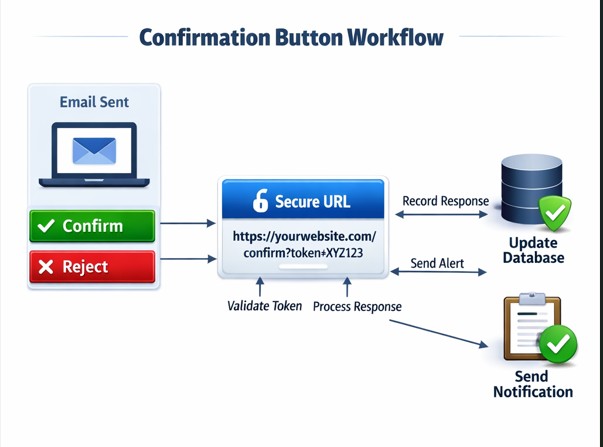
- They are redirected to a secure URL.
- The URL contains a parameter (e.g., Confirm=Yes or Confirm=No).
- Your backend captures the response.
- You update your database accordingly.
🛠️ How to Add Confirmation Button to Email Body (ASP.NET Example)
Below is a clean and updated version of your code with improvements and proper HTML formatting.
protected void sendEmail()
{
    string subject = "Please Confirm Your Invitation";
    string confirmUrl = "https://yourdomain.com/confirmation.aspx?response=Yes";
    string rejectUrl = "https://yourdomain.com/confirmation.aspx?response=No";

    string mailBody = @"
        <p>Hello,</p>
        <p>Please confirm your participation by clicking one of the buttons below:</p>

        <a href='" + confirmUrl + @"'
           style='padding:10px 20px;
                  background-color:#28a745;
                  color:#ffffff;
                  text-decoration:none;
                  border-radius:5px;
                  margin-right:10px;'>
           Confirm
        </a>

        <a href='" + rejectUrl + @"'
           style='padding:10px 20px;
                  background-color:#dc3545;
                  color:#ffffff;
                  text-decoration:none;
                  border-radius:5px;'>
           Reject
        </a>

        <p>Thank you.</p>
    ";

    MailMessage message = new MailMessage();
    message.From = new MailAddress("youremail@domain.com");
    message.To.Add("recipient@email.com");
    message.Subject = subject;
    message.Body = mailBody;
    message.IsBodyHtml = true;

    SmtpClient client = new SmtpClient("smtp.yourserver.com");
    client.Send(message);
}
🔒 Security Best Practices (Very Important)
When implementing confirmation buttons:
- Use HTTPS only
- Add a unique token (GUID) per user
- Validate the token server-side
- Prevent multiple submissions
- Log responses securely
Example secure URL:
https://yourdomain.com/confirmation.aspx?id=12345&token=abcXYZ987📱 Email Compatibility & Accessibility
Most modern email clients (Gmail, Outlook, Apple Mail) support HTML buttons styled as links.
To ensure compatibility:
- Use inline CSS
- Keep design simple
- Provide a fallback text link
- Avoid JavaScript (not supported in email clients)
⚠️ Common Mistakes to Avoid
- ❌ Not using HTTPS
- ❌ Hardcoding user IDs without validation
- ❌ Not handling duplicate clicks
- ❌ Using JavaScript inside an email
- ❌ Ignoring mobile responsiveness
🔮 Future of Interactive Emails
Email is evolving from a simple communication tool into a mini-application within the inbox. Instead of redirecting users to websites, modern emails allow actions, decisions, and even transactions directly within the email interface.
1️⃣ AMP Emails (Dynamic, App-Like Emails)
One of the biggest innovations is AMP for Email, introduced by Google and supported in Gmail.
What It Enables:
- Live forms inside email
- Real-time survey results
- Updating content without resending
- Appointment booking directly in the email
Example Use Case:
A meeting invite updates automatically when the time changes — no new email needed.
This moves email from static content → live interactive content.
2️⃣ One-Click Micro Actions
We’re already seeing:
- Confirm / Reject buttons
- Quick feedback ratings ⭐
- Poll selections
- Order tracking
In the future:
- Approve invoices
- Sign documents
- Submit forms
- Make payments
All without leaving the inbox.
3️⃣ Hyper-Personalized Emails
With AI integration, emails will:
- Adapt content based on user behavior
- Change call-to-action buttons dynamically
- Recommend actions in real time
For example:
If a user usually confirms events late, the system may highlight the “Confirm” button more prominently.
AI-powered platforms like Microsoft and Salesforce are already integrating predictive engagement models into email workflows.
4️⃣ Embedded Forms & Surveys
Instead of:
“Click here to complete the survey”
Future emails will allow:
- Dropdown selections
- Text inputs
- Checkbox forms
- Instant submission
This drastically improves response rates.
5️⃣ Secure Token-Based Smart Links
Security will become even more advanced:
- Expiring confirmation links
- One-time action tokens
- Encrypted parameters
- Auto-verification systems
Especially important for:
- HR approvals
- Financial confirmations
- Healthcare notifications
Security + convenience will go hand in hand.
6️⃣ Real-Time Data & Live Content
Emails will no longer be “frozen” at send time.
Future interactive emails can show:
- Live stock prices
- Current appointment availability
- Delivery status updates
- Countdown timers
This transforms email into a live dashboard.
7️⃣ Cross-Platform Consistency
Interactive emails will work smoothly across:
- Desktop clients
- Mobile devices
- Webmail
- Dark mode interfaces
Design systems will standardize how buttons, forms, and actions render everywhere.
8️⃣ Email + Automation Integration
Interactive emails will be deeply integrated with:
- CRM systems
- Workflow engines
- ERP platforms
- Marketing automation tools
Example flow:
User clicks “Confirm” →
Database updates →
Notification sent →
Calendar updated →
Follow-up email triggered
Email is shifting from:
📩 Read & Reply
to
⚡ Click & Act
Interactive emails will continue to reduce friction, increase engagement, and improve productivity.
| Feature | 📩 Traditional Email | ⚡ Interactive Email |
|---|---|---|
| User Action | Take action directly inside the email | Click the Confirm / Reject button |
| Response Time | Slower (requires multiple steps) | Faster (one-click actions) |
| User Engagement | Passive reading experience | Active, engaging experience |
| Confirmation Process | Reply with Yes or No | Click the Confirm or Reject button |
| Forms & Surveys | Redirect to external page | Embedded inside email (AMP) |
| Real-Time Updates | Static content (does not change) | Dynamic content (live updates) |
| Personalization | Basic (Name, Subject) | Dynamic personalization |
| Tracking & Analytics | Open & click tracking only | Action-based tracking (approve, reject, submit) |
| Security Features | Standard links | Tokenized, expiring, encrypted action links |
| Mobile Experience | Often cluttered | Designed for tap-friendly actions |
| Workflow Integration | Manual processing | Automated backend integration |
| Use Case Example | “Please reply to confirm.” | “Click Confirm below.” |